
Using Word Versioning
This guide covers every function of the add-in step by step – from installation to the audit trail export. It assumes basic Microsoft Word knowledge and is limited to operating Word Versioning.
Overview
Word Versioning adds version control to Microsoft Word that lives entirely inside the document file. Every saved version, its author, its timestamp and its comment are stored as hidden XML parts in the same .docx file as the text.
That is the essential difference from Word's built-in version history: no server, no OneDrive and no document management system is involved. The history travels with the file – across network drives, email attachments and archives.
With the add-in you can:
- save versions with author, timestamp, comment and an optional label
- open earlier versions read-only without touching the current state
- compare any two versions with each other
- restore an earlier state – with an automatic safety backup
- export a single version as a standalone
.docxfile - produce a complete audit trail as a PDF
- freeze versions so they can no longer be deleted
Word Versioning does not replace Word's own “Track Changes” and “Compare Documents”. It adds what those cannot provide: durable, named version states and an exportable record of who produced which version and when.
System requirements
| Requirement | Details |
|---|---|
| Operating system | Windows 10 or later. |
| Microsoft Word | Word 2016, 2019, 2021 or Microsoft 365 for Windows – in an edition that supports COM add-ins. |
| .NET Framework | Version 4.8. Already present on current Windows installations. |
| File format | .docx (Open XML). The legacy .doc format cannot be versioned; save such documents as .docx first. |
| Storage location | Local drive or network share. OneDrive and SharePoint are not required. |
| Internet connection | Once, for purchase and installation – the license key is validated online during setup. Day-to-day use needs no connection, and no document content is ever transmitted. |
The add-in is not available for Word on macOS: it is a COM add-in and requires Windows.
Installation and first start
- Close Microsoft Word completely.
- Run the installer – for the full version the file from the FastSpring purchase email, for the trial the file downloaded from this website.
- Follow the instructions. The license key is validated online once during installation.
- Start Word again. A new Version tab appears in the Ribbon.
- Open a
.docxdocument and save it with Ctrl+S. Versions can only be created once the document has a file path.
If the Version tab is missing, the add-in is not loaded: open File ▸ Options ▸ Add-ins, select COM Add-ins in the Manage box at the bottom, click Go and tick Word Versioning.
The “Version” tab
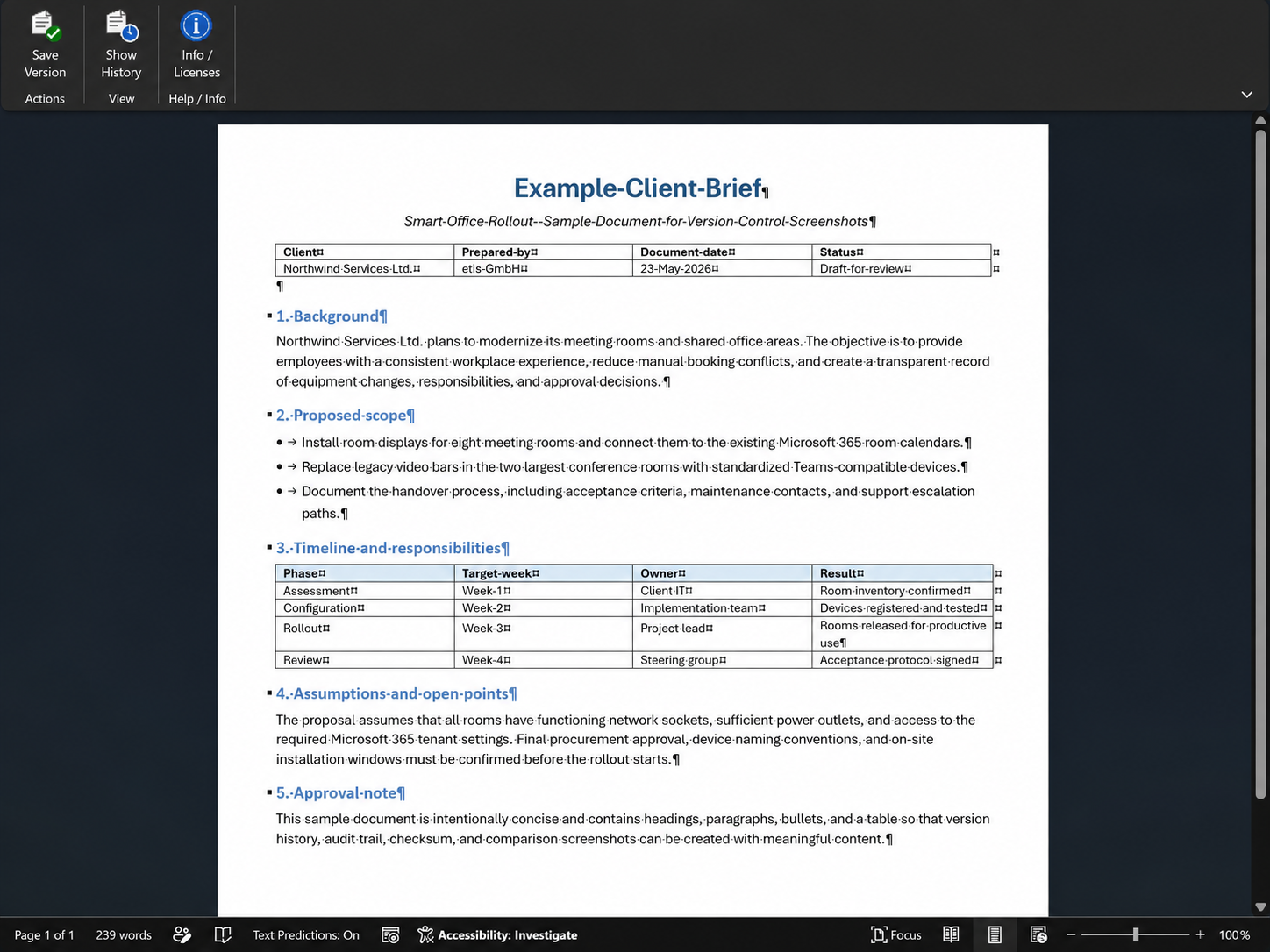
All functions are reached from the Version tab. It is divided into three groups: Actions, View and Help / Info.
| Button | Function |
|---|---|
| Save Version | Opens the Save Version dialog and records the current document state as a new version. |
| Show History | Shows or hides the Version History pane on the right. The same button is also available on Word's View tab, in the Version Control group. |
| Info / Licenses | Shows the program version, the manufacturer, license information and the third-party components in use. |
The add-in's interface follows the display language of Windows and Office: it is available in English and German, and any other display language falls back to English.
The “Version History” pane
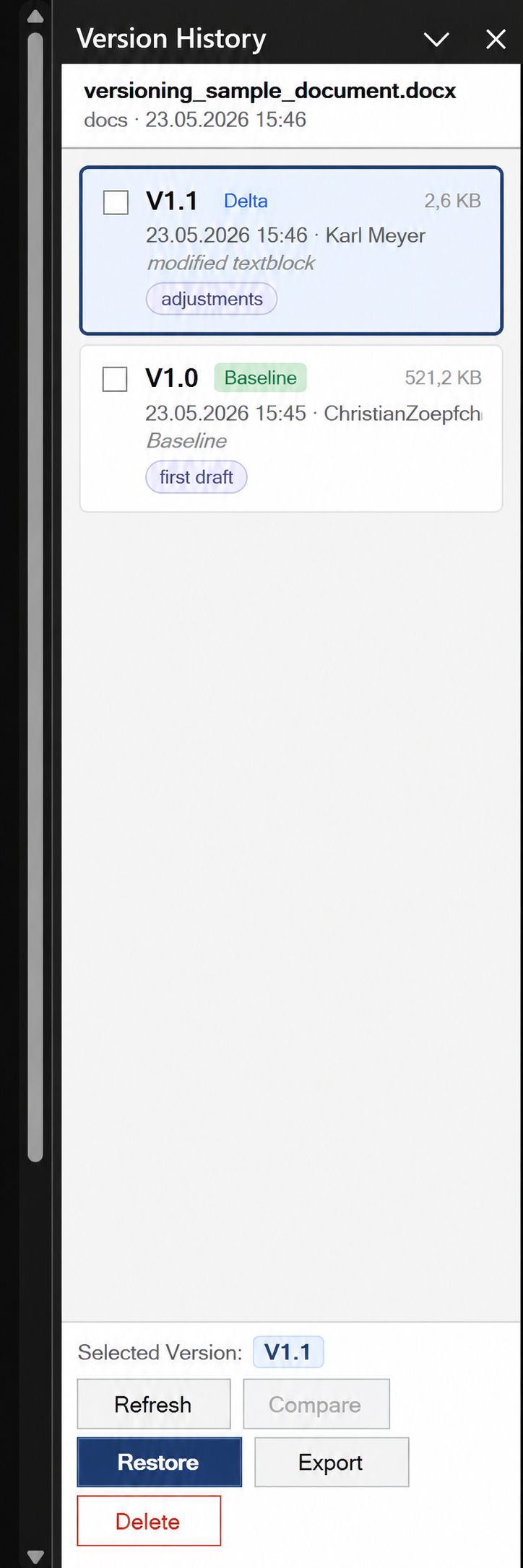
The pane lists every version of the active document, newest first. Above the list you see the file name, the storage location and the timestamp of the newest version. Below the list sits the action bar; its buttons always act on the selected version named there.
Every document window has its own pane. Switch to a different document and the pane shows that document's history.
| Element | Meaning |
|---|---|
| Header | File name of the document, its storage location and the timestamp of the newest version. |
| Check box | Selects a version for comparison. At most two versions can be ticked at the same time. |
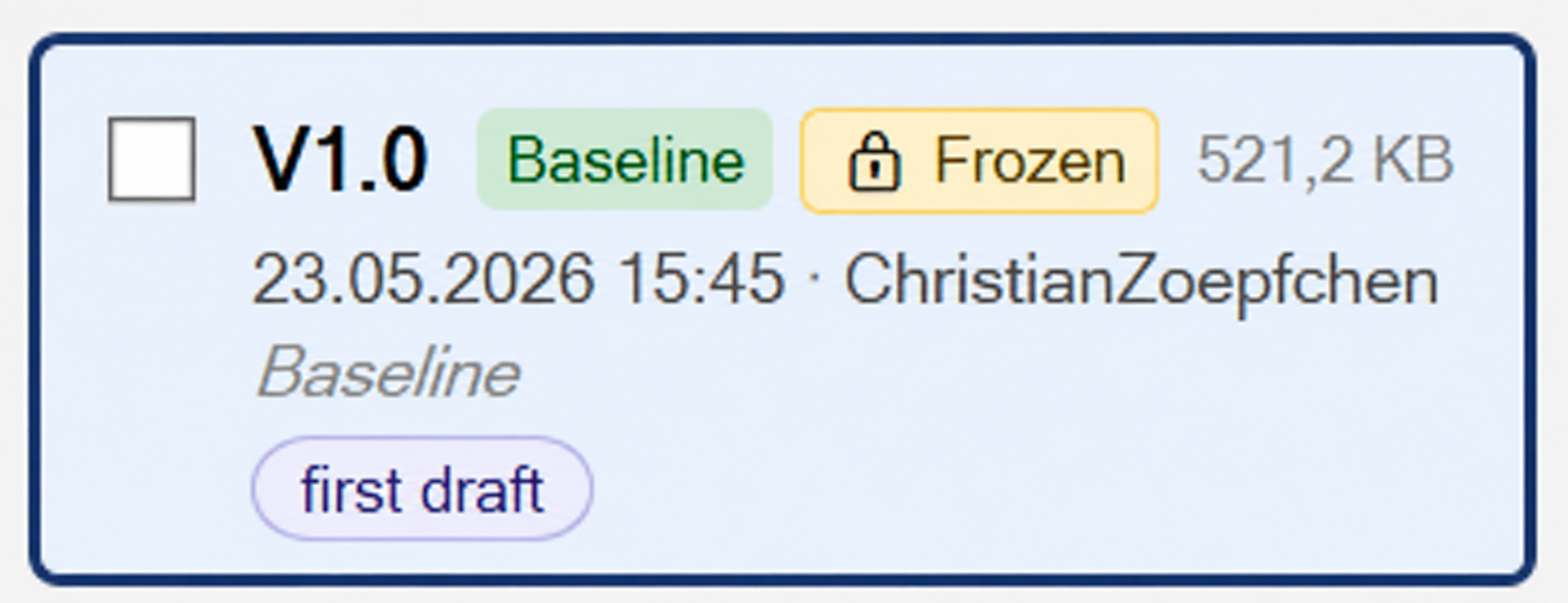
| Version number | Sequential label such as V1.0, V1.1 or V2.0. |
| Type | Baseline marks the first version, which holds a complete copy of the content. Every later version is marked Delta and stores only the differences from its predecessor. |
| Size | Amount of version data stored inside the file. Delta versions are usually far smaller than the baseline. |
| Date · Author | The time the version was saved, in your local time zone, plus the name entered in the dialog. |
| Comment | The text entered when saving. If none was given, a dash is shown. |
| Label | Optional marker for the version, shown as a rounded chip below the comment. |
| Action bar | Refresh, Compare, Restore, Export and Delete. |
Actions that are not currently possible stay greyed out – Compare, for instance, until exactly two versions are ticked. Messages from the add-in appear as a yellow strip above the list.
Saving a version
The first version of a document is always a Baseline numbered V1.0; it contains a complete copy of the content.
- Save the document (Ctrl+S) so that it has a file path.
- Click Version ▸ Save Version in the Ribbon.
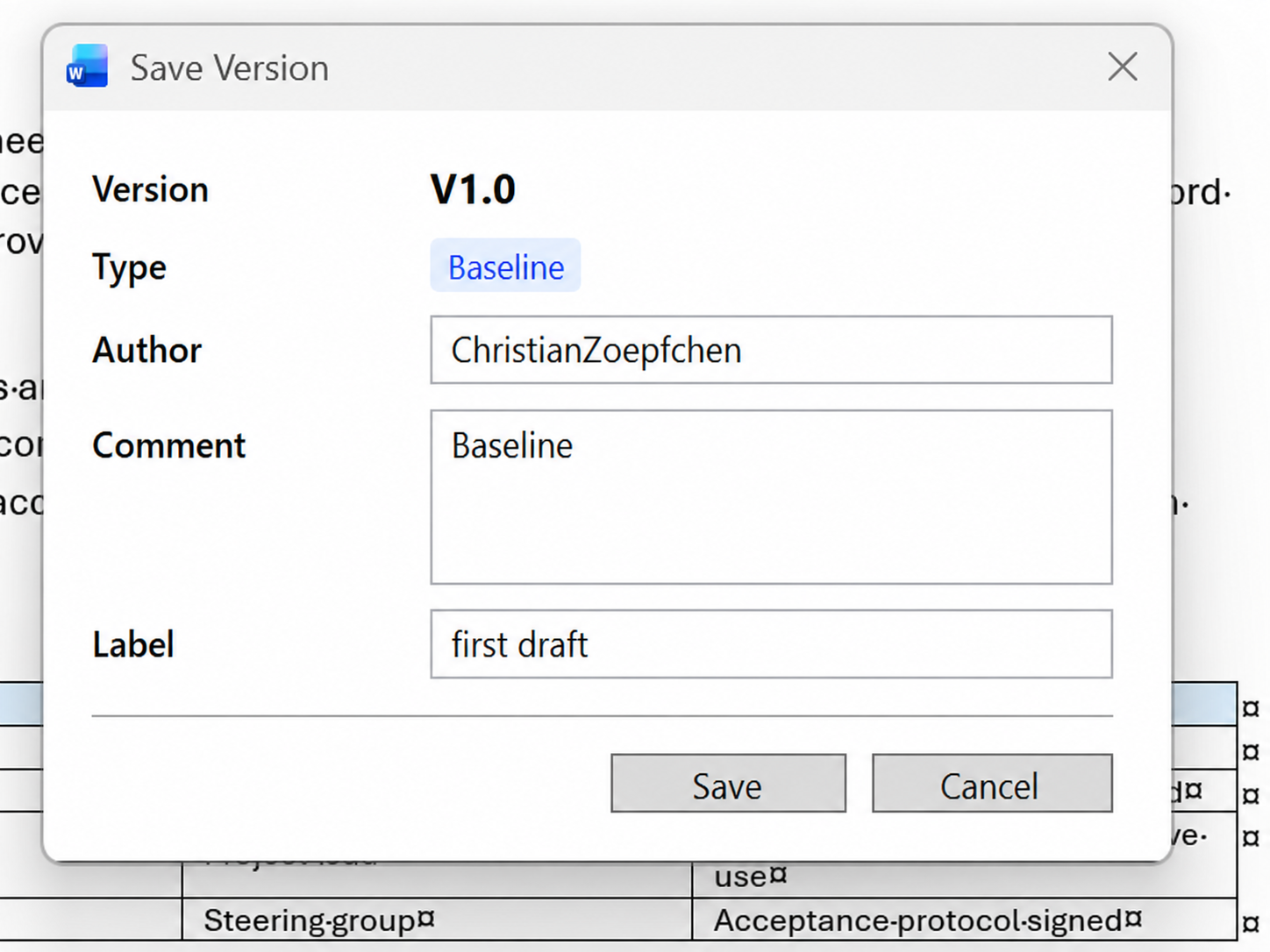
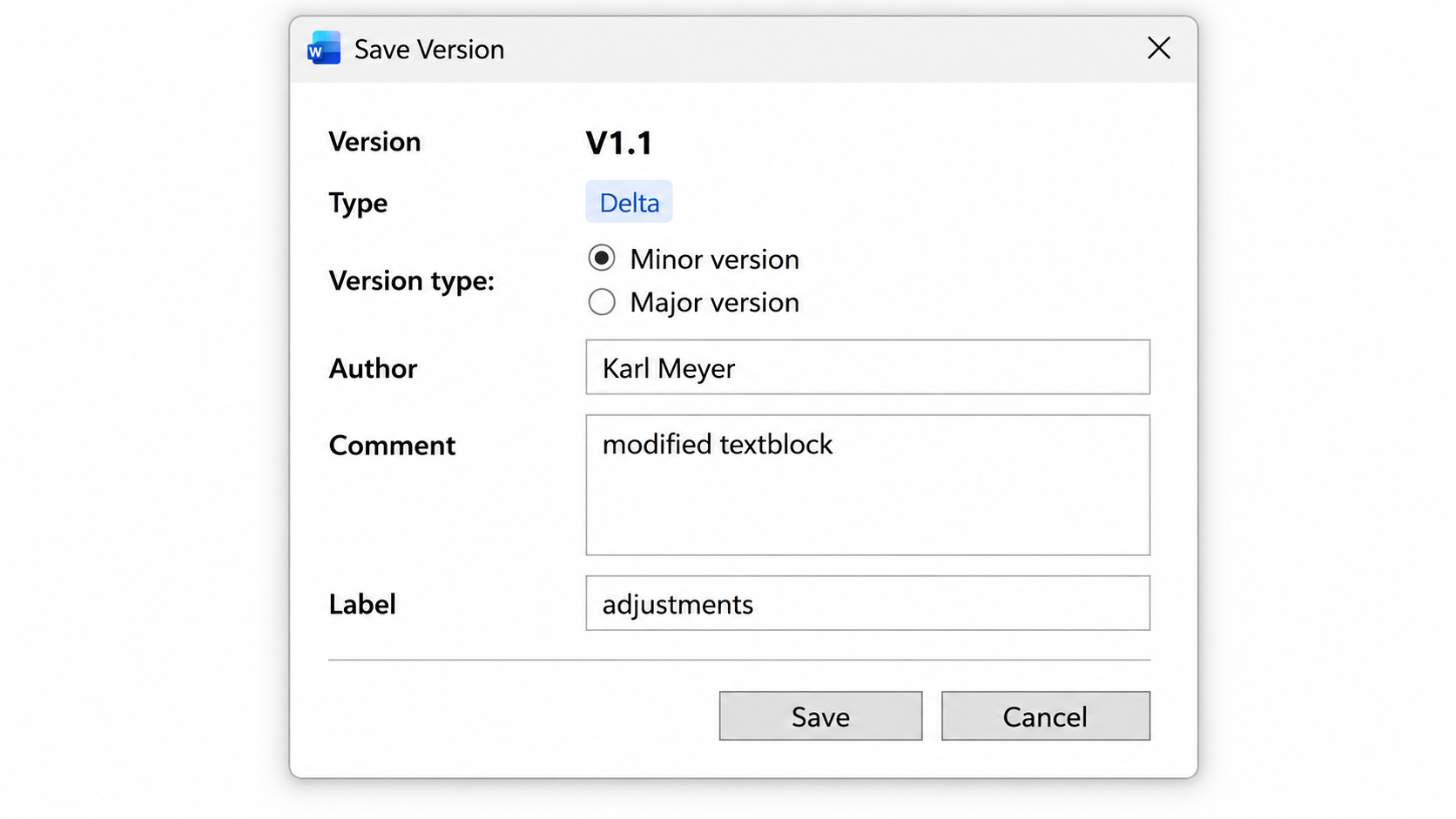
- Check and complete the fields in the dialog (see the table below).
- Click Save – or discard the version with Cancel.
- The Version History pane opens and shows the new entry.
| Field | Meaning |
|---|---|
| Version | The number that will be assigned. It cannot be edited. |
| Type | Baseline for the first version, Delta for every later one. |
| Version type | Only shown from the second version onwards: Minor version or Major version (see the next section). |
| Author | Pre-filled with your Windows user name and editable. The entry appears in the history and in the audit trail. |
| Comment | Free text, optional. It is worth noting what changed or what the state represents. |
| Label | Short marker, optional – for example “signed” or “sent to client”. It can be changed at any time later. |
If the document has never been saved, Word shows its Save As dialog first. Cancel it and the add-in points out that the document must be saved before a version can be created.
Minor or major version
From the second version onwards the dialog asks how far the number should jump. What is stored is identical in both cases; only the label differs.
| Choice | Result |
|---|---|
| Minor version | Increases the second digit: V1.0 becomes V1.1. Pre-selected, and intended for ongoing revisions. |
| Major version | Increases the first digit and resets the second: V1.2 becomes V2.0. Intended for milestones such as a dispatched or signed edition. |
If nothing has changed since the last version, the add-in reports that no changes were detected and creates no version. That is deliberate: a delta version without a difference would carry no information.
Opening an earlier version
Earlier versions can be inspected without touching the current state. The add-in reconstructs the chosen version in a temporary file and opens it read-only in a separate window.
- Double-click the entry in the pane – or right-click it and choose Open.
- Word opens the version as a read-only document alongside the original.
- To carry on from that state, copy content out of it, save the window as a new file via File ▸ Save As – or restore the version (see Restoring a version).
Open is disabled for the newest version: it is identical to the document already open. The original is never modified.
Comparing two versions
The comparison uses Word's own Compare Documents feature. Word produces a new comparison document in which every difference is marked as a tracked change.
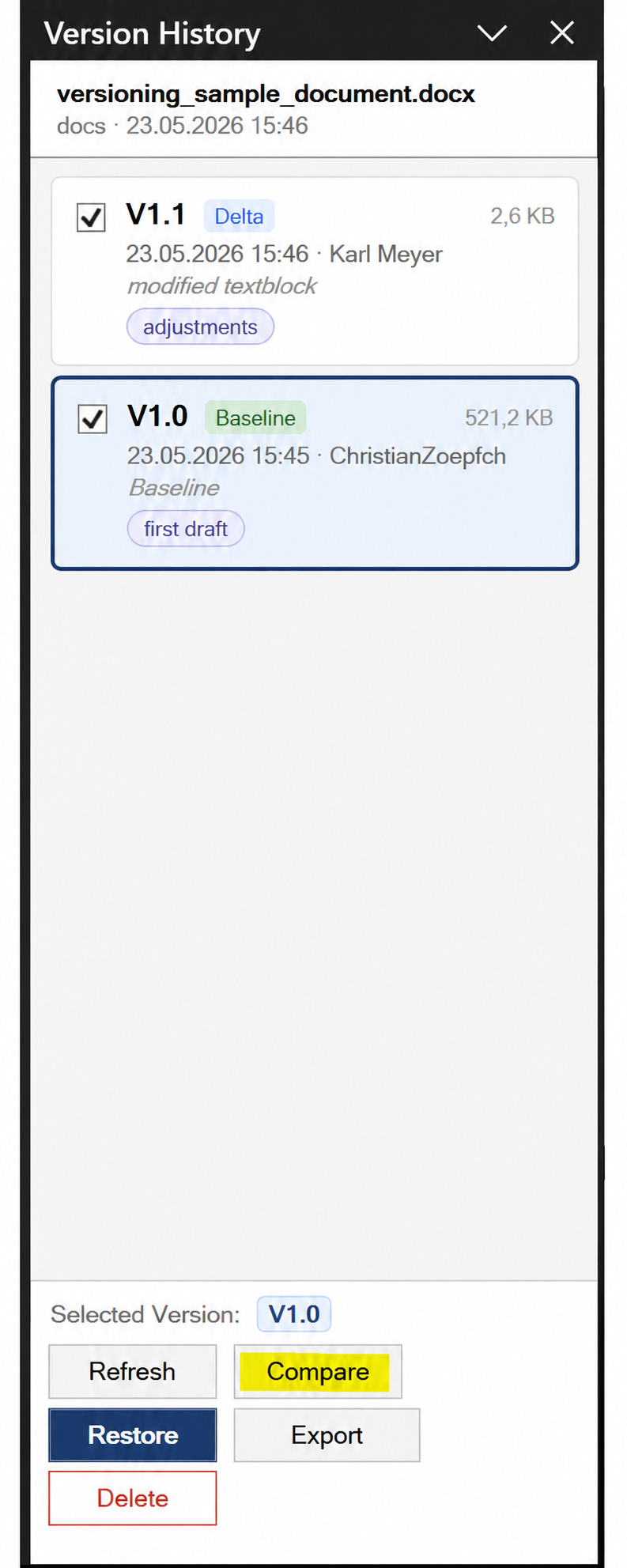
- Tick the check boxes of exactly two versions in the pane.
- Click Compare, which becomes available – either in the action bar or in the context menu.
- Word opens a new document showing the differences between the two states.
- Review the comparison document and close it without saving – or store it under its own name if you want to keep it.
A comparison changes neither the original nor the version history. A third tick cannot be set – clear one of the existing two first.
Restoring a version
Restoring replaces the content of the active document with the chosen earlier state. The version history is kept in full – nothing is deleted.
The restored state is recorded as a new major version: V1.2 becomes V2.0. That keeps it traceable when the document was rolled back and to which state.
The safety backup is a .docx file in %TEMP%\WordVersioning\RestoreBackup\ and carries the date and time in its name. It is not deleted automatically – clear the folder out from time to time.
- Click the version in the pane; it appears in the action bar as the selected version.
- Click Restore.
- Read the confirmation prompt and confirm. The add-in first creates a safety backup of the current document.
- Word closes the document, rolls the content back and re-opens it.
- The history then contains a new entry with the comment “Restored from V…”.
If a step fails, the add-in rolls the document back from the safety backup on its own and reports the error. Save your work beforehand nonetheless: restoring modifies the document content.
Exporting a version
The export writes an earlier version to a location of your choice as a standalone .docx file – optionally together with the audit trail as a PDF.
The exported file contains the content of the chosen version but no version history. It is an ordinary Word file and therefore suited to handing out one particular state.
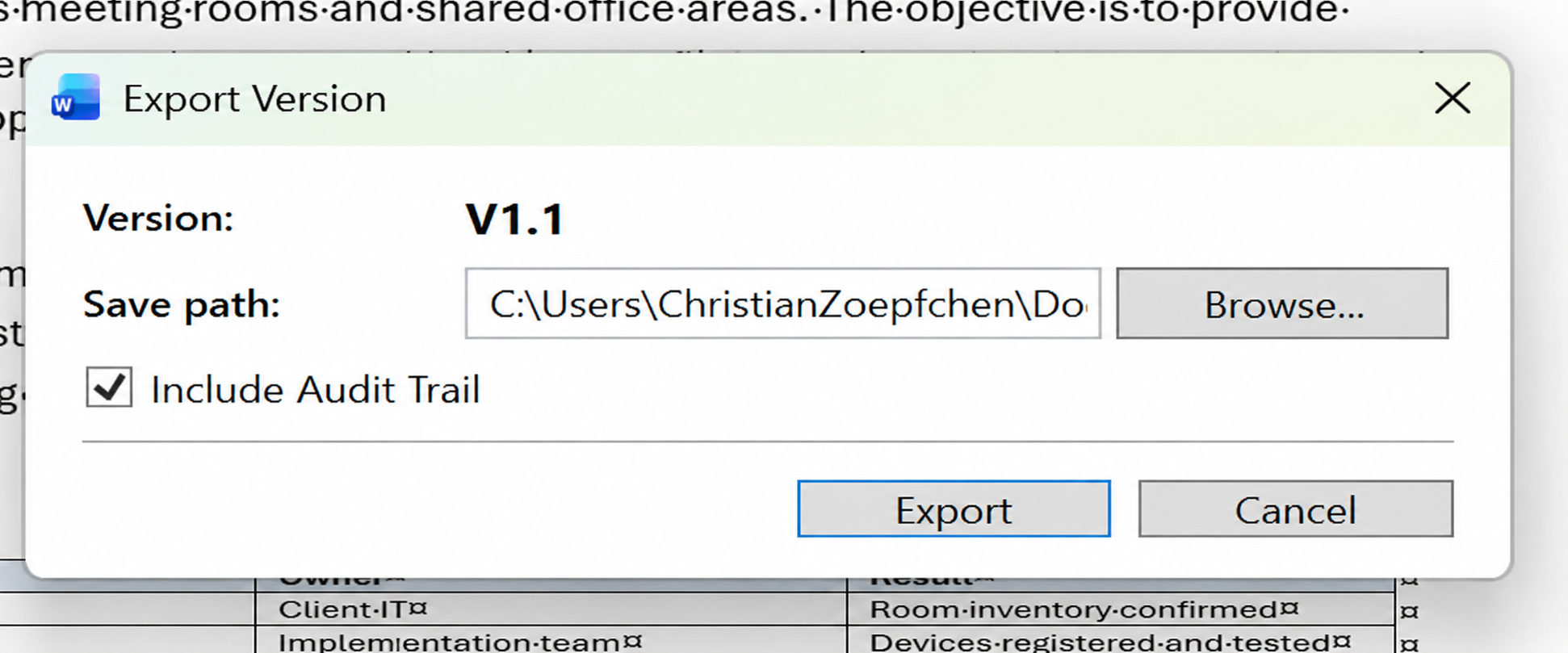
- Select the version to export in the pane.
- Click Export – in the action bar or in the context menu.
- Enter the save path in the dialog, or pick one via Browse….
- Tick or clear the Include Audit Trail check box.
- Click Export.
When the audit trail is requested, a second file is created in the same folder following the pattern File name - Audit Trail.pdf.
The audit trail
The audit trail is a PDF report on the document's version chain. It is produced during export (see the previous section) and is generated exclusively from the data inside the file – with no external system and no internet connection.
The report covers the chain from the baseline – or from the most recent restore – up to the exported version, in chronological order.
Every version carries a checksum of its content plus a chain value that incorporates the checksum of its predecessor. If an entry is altered afterwards, the chain value no longer matches – and the report says so under Integrity Assessment.
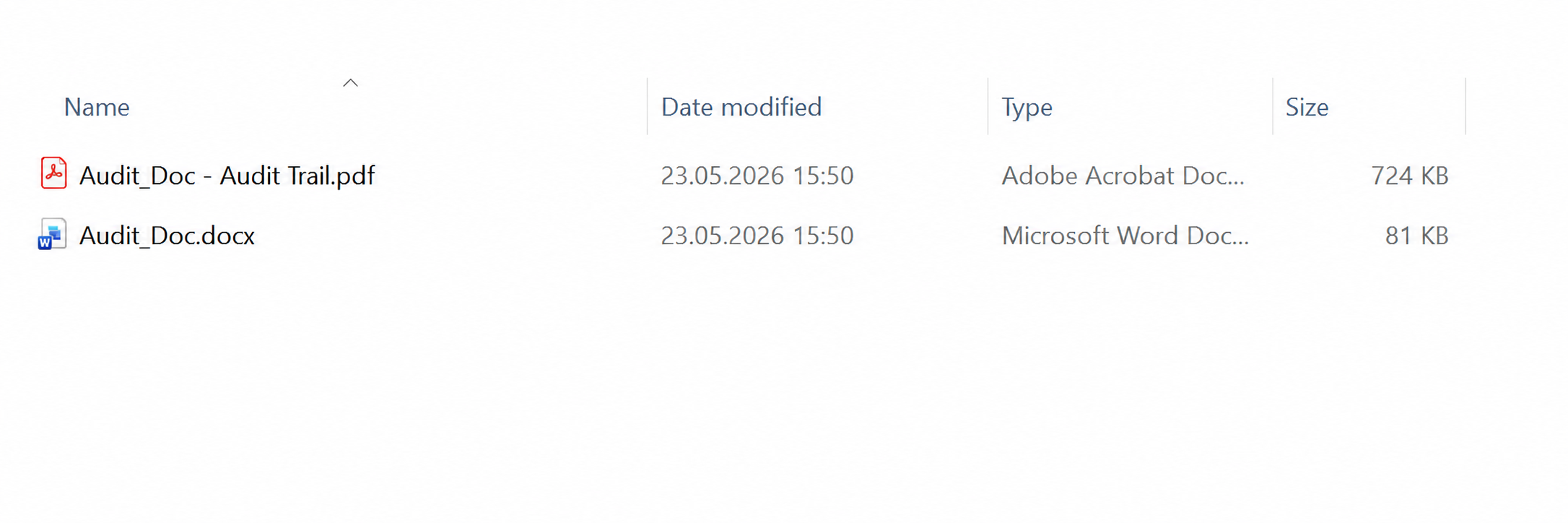
| Report section | Content |
|---|---|
| Cover page | Document name, the version in question, the generation time (UTC) and the number of versions covered. |
| Summary | The period the history spans, the target version and the outcome of the integrity check in brief. |
| Version History | A table of every version covered, with number, type, timestamp (UTC), author, label, parent version and – for restores – the source version. |
| Integrity Assessment | Whether the chain is complete and the checksums are consistent. Any deviation is listed individually. |
The PDF report is written in English, irrespective of the interface language.
Assigning labels
A label is a short marker of your choosing for a version – such as “signed” or “counterparty draft”. It appears in the version entry and in the audit trail.
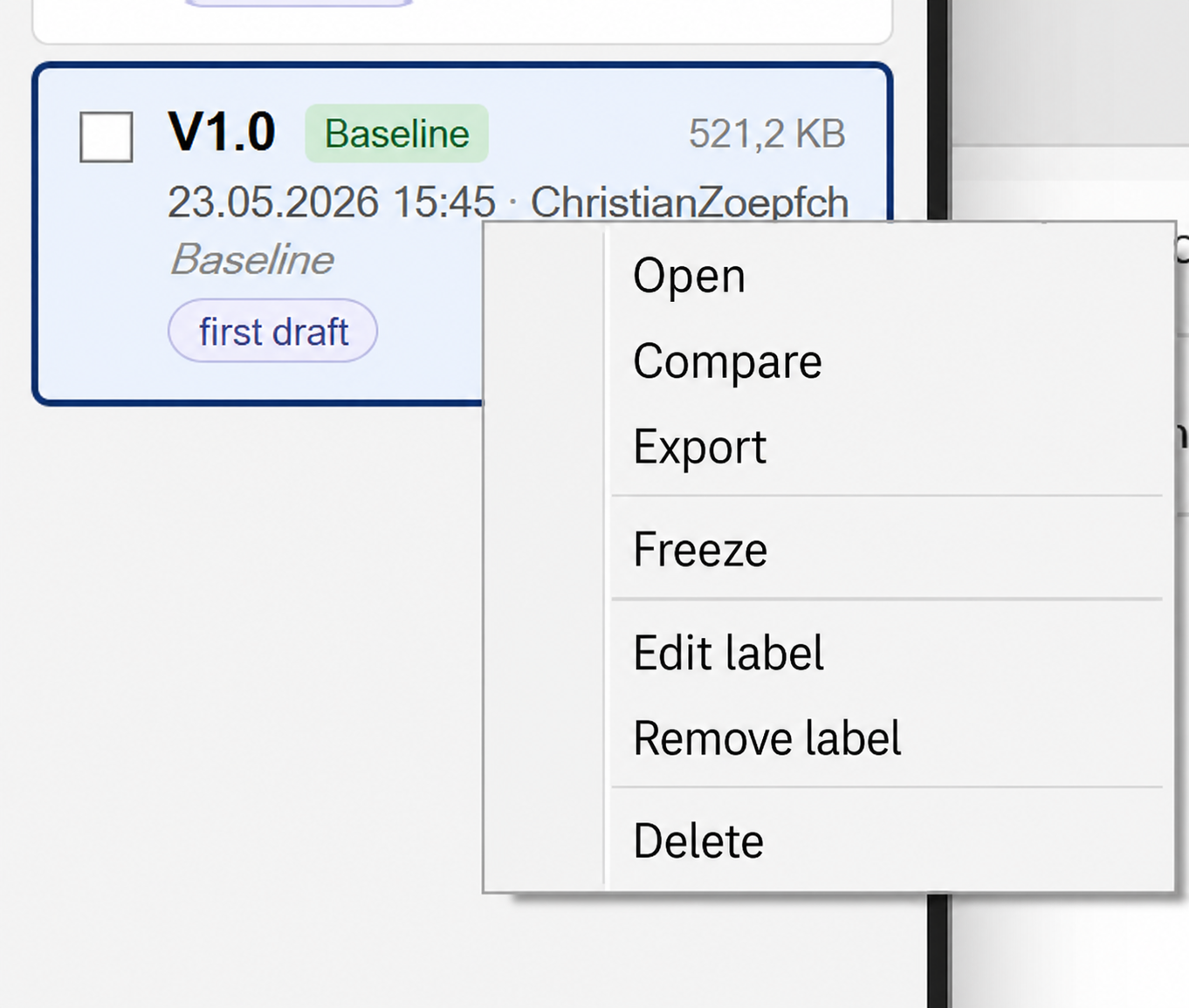
- Right-click the version in the pane.
- Choose Set label, or Edit label if one is already assigned.
- Enter the text and confirm. Leaving the field empty removes the label.
- Alternatively, Remove label clears the marker without a prompt.
The version number itself cannot be changed – that is what the label is for. Labels remain editable even on frozen versions.
Freezing versions
A frozen version can no longer be deleted. This is the safeguard for states that must be preserved – for instance the edition that went to a client or an authority.
- Right-click the version in the pane.
- Choose Freeze.
- Confirm the prompt. The entry then carries the Frozen badge.
Freezing is final: it cannot be undone. As long as a frozen version sits in the deletion chain, deleting its successors is refused as well.
Deleting versions
Versions can be removed from the history to shrink the file or to clean up intermediate states. Because every delta version builds on its predecessor, deleting one may take further versions with it. The confirmation dialog always states the exact number beforehand.
- Select the version in the pane.
- Click Delete.
- Read the dialog and confirm – or cancel.
| Selected version | Consequence |
|---|---|
| Newest version | Only this version is deleted. |
| Version with successors | This version and every version that builds on it are deleted. |
Baseline V1.0 |
The entire history is deleted. The document content stays as it is; a new V1.0 can be created at any time. |
Deletion cannot be undone. Frozen versions are never deleted: if the deletion chain contains one, the add-in aborts the operation with a message.
Where the data lives
Version data and history are stored as hidden XML parts inside the .docx file itself. There is no companion file, no database and no server. Copy the file and you copy the history; send the file and you send the history.
The first version is stored as a complete copy of the content, every later one only as the difference from its predecessor. That is why the file grows far more slowly than a set of separate file copies would.
Each document also carries a permanent identifier inside the file, so renaming or moving the document has no effect on its history.
If you save the document as a copy via Save As, the copy contains the entire history up to that point. From then on the two files evolve independently: new versions in one do not appear in the other. For documents worked on by several people, the usual rule therefore applies – one file, one editor at a time.
Trial version
The trial is functionally identical to the full version but limited by the number of program starts. A program start is every start of Word with the add-in loaded; there is no time limit.
The counter is kept locally on your device and is bound to that machine. Versions you have already saved stay in your documents – they are part of the file and are not lost when the trial expires.
| Program starts | Behaviour |
|---|---|
| the first 50 starts | The add-in runs without restriction and without any prompt. |
| up to start 60 | A purchase reminder with a link to the shop appears on start. All functions remain usable. |
| after 60 starts | The add-in reports that the trial has expired; the versioning functions are then no longer available. |
In the trial the Version tab shows an extra Trial group with the remaining starts and a Buy now button. The full version does not have this group.
Limitations
So that you can plan the add-in in properly, these are its deliberate limits:
- Only the
.docxformat is versioned – not.doc,.rtfor.odt. - The history is linear: there is no branching and no merging of two editing states.
- No multi-user operation on the same file: simultaneous edits are not merged.
- Safety backups from a restore remain in
%TEMP%\WordVersioning\RestoreBackup\and have to be removed by hand. - Very large documents with extensive images produce correspondingly large version data; saving and comparing then take longer.
- The audit trail evidences the integrity of the chain inside the file. It is not a qualified electronic signature and does not replace timestamps from a trust service provider.
Troubleshooting
The most common messages and what causes them:
| Message or symptom | Cause and remedy |
|---|---|
| The Version tab is missing | The add-in is not loaded. Tick Word Versioning under File ▸ Options ▸ Add-ins ▸ COM Add-ins ▸ Go. If the entry stays disabled, Word switched the add-in off after an error – restart Word and repeat the installation if necessary. |
| “Please save the document before creating a version.” | The document has no file path yet. Save it as .docx with Ctrl+S and repeat the action. |
| “The active document has no version manifest.” | No version has been saved in this file yet. Create a V1.0 version first. |
| “No changes detected since the last version.” | The content matches the newest version. This is not an error – edit the document before saving another version. |
| “The version chain is invalid or incomplete.” | A version that others build on is missing – for example because the file was edited outside Word or altered by a repair operation. Check the audit trail; parts of the chain that are still complete can be opened and exported as usual. |
| This version is frozen and cannot be deleted | The deletion chain contains a frozen version. Freezing cannot be undone; delete the individual versions that follow the frozen one instead. |
| “Trial version expired” | The number of free program starts has been reached. Versions you already saved stay in your documents and become accessible again with the full version. |
If a problem persists, note the message verbatim and write to info@etis-gmbh.de. Please include your Word version, your Windows version and the program version shown under Info / Licenses.
Support and contact
We answer questions about operation, licensing and deployment in your environment personally – no ticket system.
- Email: info@etis-gmbh.de
- Phone: +49 (0)651 493670-0
- Address: etis GmbH, Metternichstraße 28-30, 54292 Trier
Invoices, payments and the right of withdrawal are handled by FastSpring as the seller; the details are in your purchase email and in the imprint.